Ship Orders with UPS, Keep Everything in Inventory Pro
Scan an order, print a UPS label, and the tracking number shows up right back in Inventory Pro. No re-typing, no spreadsheets.
Your Orders Are Ready to Ship
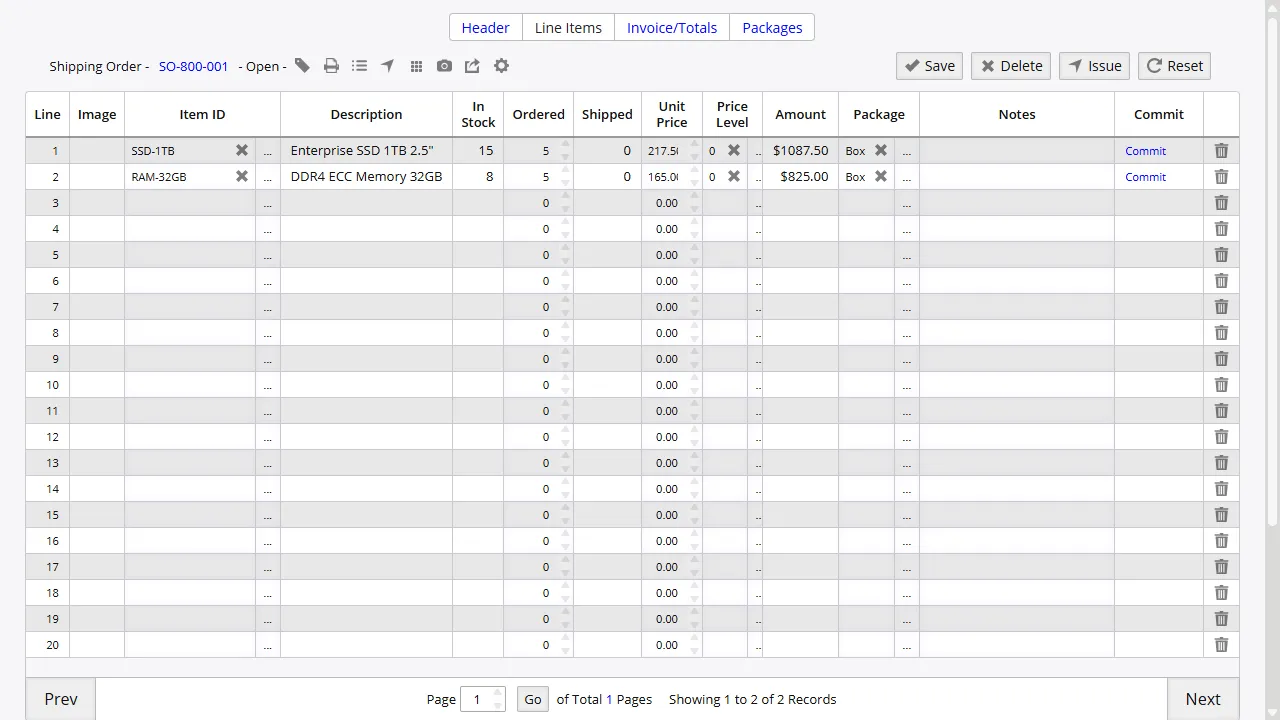
When an order is ready to go in Inventory Pro, the customer name, address, and items are already there. You scan the barcode or click the order, and everything you need for the UPS label is right in front of you. No copying addresses from a spreadsheet. No typing things twice.
Inventory Pro passes the order details straight to UPS. If you ship a few orders a day or a few hundred, the process is the same: pick the order, print the label, ship it.
Addresses That Are Actually Right
The shipping address comes straight from the order in Inventory Pro. Street, city, state, zip - it all carries over to the UPS label without you typing it in. One less chance for a typo that sends a package to the wrong address.
When you are shipping from a home office or a small warehouse, typing addresses by hand is slow and error-prone. Pulling them directly from the order means the label matches what the customer gave you.
Tracking Numbers Show Up Automatically
Once UPS generates a tracking number, it writes right back into the order in Inventory Pro. You can see it when you open the order, copy it to send to a customer, or print it on a packing slip. No switching between apps to look it up.
No more copying tracking numbers from a UPS screen into a spreadsheet or email. The number lands in the order where it belongs, and your whole team can see it.
Simple Shipping, No Complicated Setup
Inventory Pro connects to UPS through a simple data link. You do not need to install extra software or hire an IT person. Your orders live in Inventory Pro, UPS handles the shipping, and the two systems talk to each other automatically.
Everything runs from your browser. You mark an order as ready, print the label, and the tracking number comes back. That is essentially all there is to it.
Start Shipping Orders Today
Sign up for free, add your first orders, and ship with UPS in minutes. No credit card, no setup fees, no sales call.