Work orders manage the manufacturing and assembly of goods, coordinating materials, labor, equipment, and documentation throughout the production process. The system tracks components, costs, and progress from creation through completion with complete audit trails and inventory integration.
| Work Order Method | Access Path | Purpose |
|---|
| Standard Work Orders | Orders → Other → Work Orders → Create Work Order | Complete manufacturing orders with bill of materials, labor tracking, equipment allocation, and cost management |
| Assembly Work Orders | Work Orders → Line Items → All Components/Top Components | Kit or assemble finished goods from bill of materials with automatic component removal and finished good receipt |
| Internal Parts Issuing | Work Orders → Line Items (no assembly) | Track parts issued internally for work without creating new inventory items |
| Bill of Materials | Orders → Other → Bill of Materials | Define component lists for assemblies with quantities, costs, and yield factors |
| Labor Tracking | Work Orders → Labor Sheet | Record employee time and costs for production work |
| Equipment Management | Work Orders → Equipment Sheet | Track asset utilization, hours, and costs for production |
| Work Order Notes | Work Orders → Notes Tab | Document production instructions, issues, quality checks, and communications |
| Purchase Order Integration | Work Orders → Create PO for Missing Components | Auto-generate purchase orders for components requiring procurement |
All work orders update inventory in real-time, track costs accurately, and integrate with purchasing, labor management, and equipment systems for complete production visibility.
Access: Orders → Other → Work Orders
Understanding Work Orders
Work orders use a multi-stage lifecycle where you plan the work, allocate materials and resources, execute production, and complete with inventory updates. This phased approach ensures accurate cost tracking and complete documentation of manufacturing activities.

Screen Components:
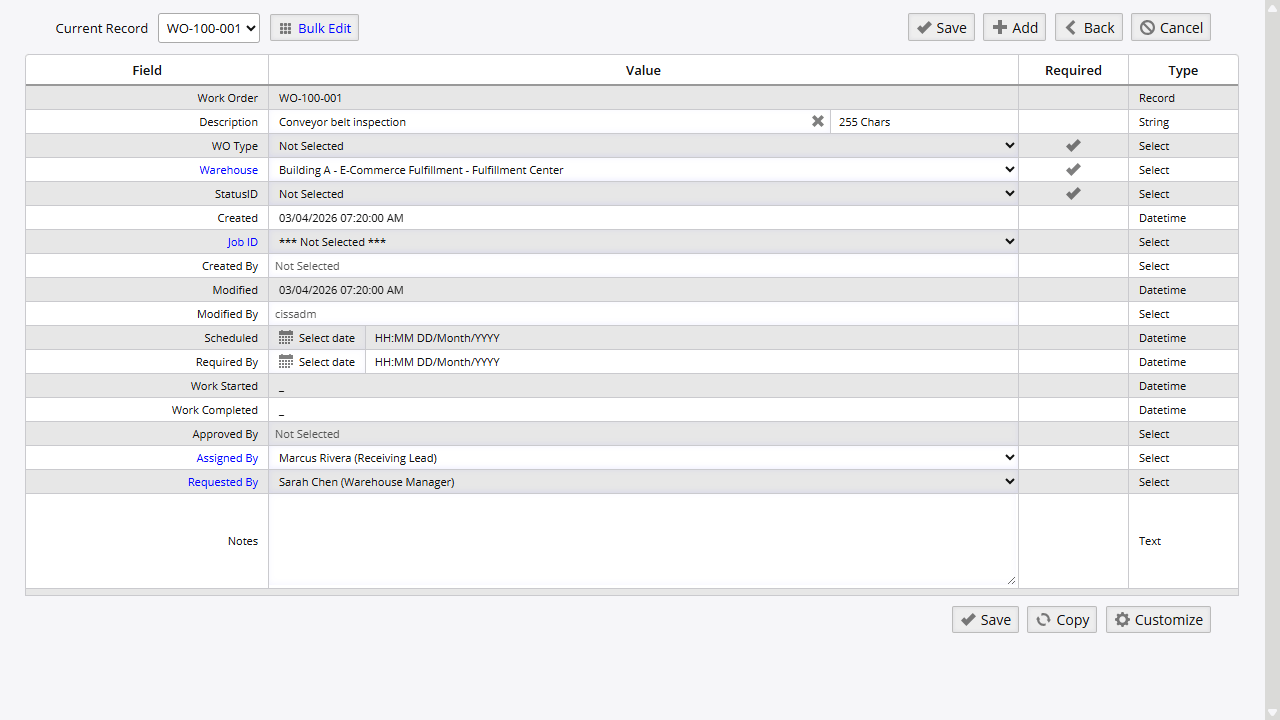
- Header Tab: Work order number, description, type, warehouse, status, notes
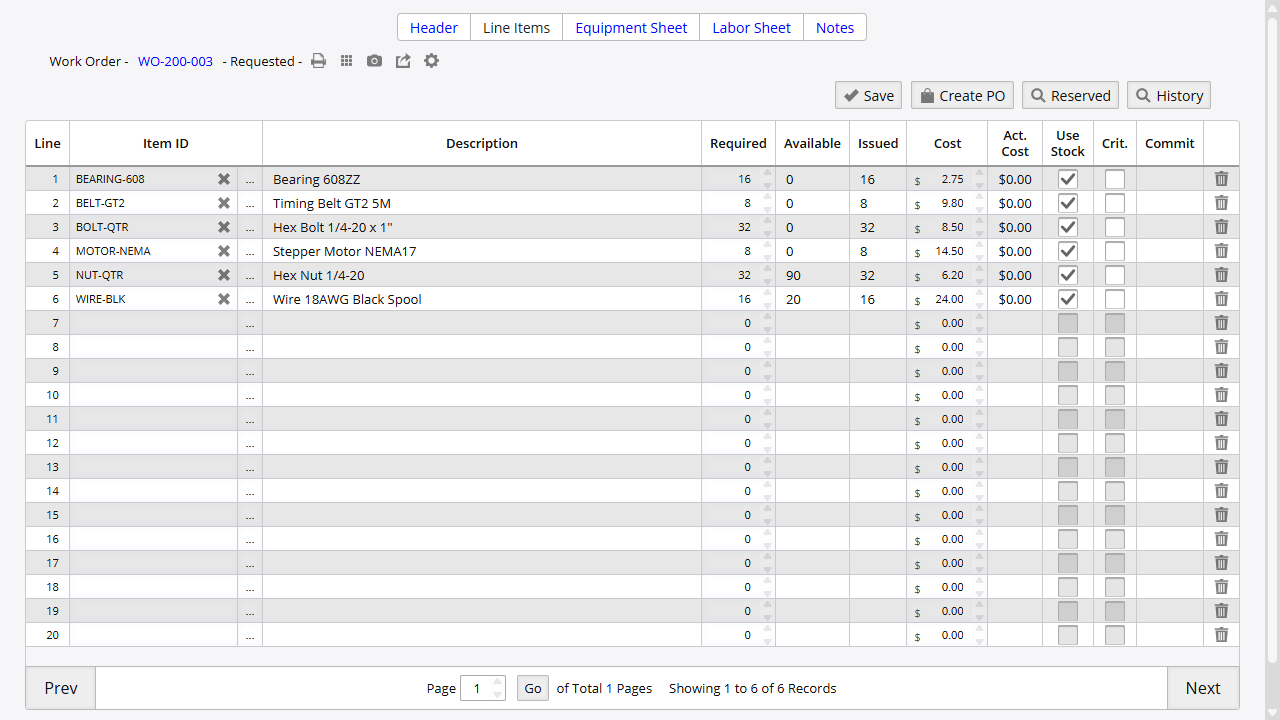
- Line Items Tab: Components and materials required, assembly selection, quantities
- Labor Sheet Tab: Employee time recording, labor costs, productivity tracking
- Equipment Sheet Tab: Asset assignment, utilization hours, equipment costs
- Notes Tab: Production documentation, instructions, quality notes, communications
The Line Items tab displays the components list with required quantities, available stock, costs, and allocation flags:

Key Operations:
- Save: Stores work order without inventory allocation. Allows planning and modifications
- Load Components: Auto-populates line items from bill of materials (All Components or Top Components)
- Assemble: Initiates assembly process and inventory allocation for components
- Issue: Removes components from inventory and receives finished goods into stock
- Complete: Finalizes work order and closes for cost reporting
- Cancel: Cancels work order before completion and releases any reserved inventory
Work Order Status Workflow:
- Requested: Initial planning stage, work order created but not released for production
- Open: Released for production, allows component commitment and assembly processing
- Started: Production has begun, active work in progress
- Completed: All production work finished, costs finalized
- Canceled: Work order canceled before completion
- Closed: Final administrative closure and cost allocation complete
Work Order Methods
Standard Work Orders
Create comprehensive manufacturing orders with complete material, labor, and equipment tracking.
Required: Work order number, warehouse, at least one line item (component or assembly)
When to Use Standard Work Orders:
- Manufacturing finished goods from components
- Assembly operations requiring bill of materials
- Production requiring labor and equipment tracking
- Complex multi-step manufacturing processes
- Cost tracking for manufactured items
When NOT to Use Standard Work Orders:
- Simple component transfers (use Issue Stock instead)
- Shipping assembled kits to customers without manufacturing (use Shipping Orders with assembly loading)
- Repairs using parts (use Repair Orders instead)
Workflow:
- Navigate to Orders → Other → Work Orders
- Click “Create Work Order” button
- Complete Header tab:
- Work Order: System-generated ID or manual entry for tracking
- Description: Purpose and scope of manufacturing work
- WO Type: Select category from Work Order Types list
- Warehouse: Production location where work will be performed
- Status: Set to “Requested” for planning or “Open” to allow production
- Notes: Additional information about the work order
- Click “Save” to create work order header
- Navigate to Line Items tab
- For assembly work orders:
- Select or enter Assembly item (finished good being manufactured)
- Enter Units quantity to be produced
- Click “All Components” to load all assembly levels from BOM
- Or click “Top Components” to load only top-level components (no subassemblies)
- System automatically populates line items with BOM components and quantities
- Add additional components not in BOM if needed:
- Go to next available empty line
- Enter Item ID or search using three dots icon
- Enter Qty (required units)
- Enter Price if needed
- Click “Save”
- Navigate to Equipment Sheet tab
- Add assets used in production:
- Click three dots icon in Asset field to select equipment
- Set number of hours asset will be used
- Enter cost per hour for equipment
- Set date and time for asset usage
- Click “Save”
- To delete: Check Mark column and click “Delete”
- Repeat step 9 for all assets needed
- Navigate to Labor Sheet tab
- Add employees working on production:
- Click three dots icon in Employee field to select worker
- Set number of hours employee will work
- Enter cost per hour for labor
- Set date and time for labor
- Click “Save”
- To delete: Check Mark column and click “Delete”
- Repeat step 12 for all employees needed
- Navigate to Notes tab (optional)
- Add production notes:
- Select Employee using three dots icon
- Type notes into Notes field
- Set Date and time of notes
- Click “Save”
- When ready to produce, verify Status is “Open” or “Started”
- Navigate to Line Items tab
- Click “Assemble” button to begin production
- Confirm issue by clicking “Yes” in prompt
- Select specific inventory units:
- Click three dots icon in Location or Lot/Serial fields to select specific units
- Or click “Load All” for automatic inventory selection
- Click “Save” to review selections
- Click “Issue” button to finalize
- System automatically:
- Removes components from inventory
- Receives finished goods into stock
- Updates work order to completed status
- Creates complete audit trail
Features:
- Bill of Materials Integration: Auto-load components with calculated quantities
- Multi-Level Assemblies: Support for complex nested assemblies and subassemblies
- Labor Tracking: Complete employee time and cost recording
- Equipment Utilization: Asset usage hours and cost allocation
- Cost Accumulation: Automatic tracking of material, labor, and equipment costs
- Serial Number Support: Track serialized components in assemblies
- Partial Assembly: Support for partial completion based on system settings
- Backorder Creation: Automatic backorders for incomplete work orders (if configured)
Line Item Fields
Understanding field behavior in work order line items:
| Field | Behavior | Notes |
|---|
| Item ID | Required | Component or material needed for production. Must be active in selected warehouse |
| Assembly | Optional | Finished good being manufactured. Must have “Item is a MAKE” checkbox enabled in item master |
| Units/Qty | Required, >0 | Quantity needed for components or quantity to produce for assembly |
| Price | Optional | Cost reference for component (for costing analysis) |
| Location | Required for issue | Physical bin location. Selected during assembly process |
| Lot/Serial | Required for serialized items | Specific units being consumed. Selected during assembly process |
| Critical | Checkbox | Mark critical path components for filtering and priority planning |
| Yield | Percentage | Percentage of goods not wasted (100 = no waste). From BOM |
Assembly Work Orders
Kit or assemble finished goods from bill of materials with automatic component removal and finished good receipt into inventory.
Required: Assembly item (must be marked as MAKE item), component availability in inventory
Workflow:
- Create work order with Status set to “Open”
- Navigate to Line Items tab
- Select Assembly item (finished good)
- Enter Units to be produced
- Click “All Components” or “Top Components”
- System loads BOM components automatically
- Review and adjust quantities if needed
- Click “Assemble” button
- Select inventory locations/serials or click “Load All”
- Click “Issue” button
- Components removed from stock, finished goods received
Features:
- Automatic BOM Loading: Components populate from bill of materials
- Quantity Scaling: Component quantities calculated based on assembly units
- Multi-Level Support: Handle nested assemblies and subassemblies
- Yield Calculations: Adjust for waste and yield factors
- Inventory Validation: Verify component availability before assembly
- Serial Number Tracking: Link component serials to finished goods
Internal Parts Issuing
Track parts issued internally for work without creating new inventory items in stock.
Required: Components to issue, work order for tracking
When to Use Internal Parts Issuing:
- Maintenance work using internal parts
- Repairs not creating new inventory
- Parts consumption for internal projects
- Component usage tracking without assembly output
Workflow:
- Create work order (do not select assembly item)
- Navigate to Line Items tab
- Add components being issued:
- Enter Item ID for each component
- Enter Qty being consumed
- Add all parts needed
- Click “Save”
- Click “Assemble” button (even though no assembly selected)
- Select inventory locations/serials or click “Load All”
- Click “Issue” button
- Parts removed from inventory without receiving finished goods
Features:
- No Assembly Required: Issue parts without creating new items
- Cost Tracking: Track component costs for internal work
- Audit Trail: Complete documentation of parts usage
- Flexible Application: Use for any internal parts consumption
Bill of Materials Integration
Bill of Materials (BOM) defines the component lists for assemblies with quantities, costs, yield factors, and critical item flags.
Access: Orders → Other → Bill of Materials
Creating Bill of Materials:
- Ensure all component parts exist in Item Master List
- Create assembly item in Item Master List
- Mark assembly item with “Item is a MAKE” checkbox enabled
- Navigate to Orders → Other → Bill of Materials
- Select assembly item
- Add components:
- Item ID: Select or type component item
- Units: Quantity required to make one finished product
- Labor Hours/Cost: Reference information for labor (not used in automatic calculations)
- Crit. Field: Check if component is critical (for filtering and priority)
- Yield: Percentage of goods not wasted (100 = no waste)
- Repeat for all components in assembly
- Click “Save” when finished
Multi-Level Assemblies:
- Components can be assemblies themselves (subassemblies)
- Example: Desktop computer requires computer tower (subassembly), keyboard, monitor, mouse
- Computer tower subassembly requires motherboard, RAM, CPU, hard drive, case, power supply
- Both desktop computer and computer tower need separate BOMs
- Work orders can load all levels or top level only
Removing Components from BOM:
- Select assembly from BOM list
- Check Mark column for component to remove
- Click “Delete” button
- Click “Save” when done
BOM Features:
- Automatic Work Order Population: Components load into work orders automatically
- Yield Calculations: Adjust quantities for waste and efficiency
- Critical Item Flagging: Identify long lead time or critical components
- Multi-Level Support: Nested assemblies with subassembly BOMs
- Cost Integration: Component costs feed into work order estimates
- Flexible Modification: Add or remove components per work order as needed
See Bill of Materials and Assemblies for complete BOM management documentation.
Labor Tracking
Record employee time and costs for production work with detailed time tracking and cost allocation.
Access: Work Orders → Labor Sheet Tab
Adding Labor:
- Navigate to Labor Sheet tab in work order
- Click three dots icon in Employee field
- Select employee from list
- Enter labor details:
- Hours: Number of hours worked on work order
- Cost Per Hour: Employee or category labor rate
- Date/Time: When labor was performed
- Click “Save”
- Repeat for all employees working on work order
Removing Labor:
- Check Mark column for labor entry to delete
- Click “Delete” button
- Click “Save”
Labor Features:
- Employee-Specific Rates: Track costs by individual employee
- Time Tracking: Detailed timestamp recording for labor hours
- Cost Calculation: Automatic calculation of total labor costs
- Multiple Employees: Track multiple workers on single work order
- Date/Time Recording: Track when labor was performed
- Cost Accumulation: Labor costs roll up to total work order cost
Use Cases:
- Production labor cost tracking
- Efficiency analysis (actual vs estimated hours)
- Employee productivity measurement
- Job costing and profitability analysis
Equipment Management
Track asset utilization, hours, and costs for production equipment used in manufacturing.
Access: Work Orders → Equipment Sheet Tab
Adding Equipment:
- Navigate to Equipment Sheet tab in work order
- Click three dots icon in Asset field
- Select asset from list
- Enter equipment details:
- Hours: Number of hours asset will be used
- Cost Per Hour: Equipment hourly rate
- Date/Time: When asset was used
- Click “Save”
- Repeat for all assets needed
Removing Equipment:
- Check Mark column for asset entry to delete
- Click “Delete” button
- Click “Save”
Equipment Features:
- Asset Utilization Tracking: Record equipment usage hours
- Cost Allocation: Equipment costs allocated to work orders
- Maintenance Integration: Usage tracking supports preventive maintenance
- Availability Scheduling: Coordinate equipment allocation across work orders
- Cost Accumulation: Equipment costs roll up to total work order cost
Use Cases:
- Equipment utilization analysis
- Maintenance scheduling based on usage
- Production capacity planning
- Equipment cost tracking and allocation
Work Order Notes
Document production instructions, issues, quality checks, and team communications throughout the manufacturing process.
Access: Work Orders → Notes Tab
Adding Notes:
- Navigate to Notes tab in work order
- Click three dots icon in Employee field (optional - associate note with employee)
- Enter note information:
- Notes: Text documentation of production information
- Date: When note was created
- Click “Save”
Note Categories:
- Production Instructions: Technical specifications and procedures
- Quality Notes: Quality control checkpoints and results
- Issue Tracking: Problems encountered and resolutions
- Change Orders: Engineering changes and modifications
- Team Communication: Coordination between shifts and departments
- Completion Documentation: Final production notes and verification
Use Cases:
- Shift handoffs and communication
- Quality control documentation
- Problem tracking and resolution
- Production instruction clarification
- Engineering change documentation
Work Order Types
Categorize work orders for reporting, filtering, and organizational purposes.
Access: Orders → Other → Work Order Types
Creating Work Order Types:
- Navigate to Orders → Other → Work Order Types
- Click “Add New Work Order Types” button
- Enter Description (category name)
- Check Use checkbox to enable the type
- Click “Save”
Common Work Order Types:
- Manufacturing
- Assembly
- Repair
- Maintenance
- Rework
- Prototype
- Custom Orders
Features:
- Unlimited Types: Create as many categories as needed
- Filtering: Filter work order lists by type
- Reporting: Analyze production by work order type
- Enable/Disable: Control which types are active
Work Order Management
Printing Work Order Preview
Generate production documentation, instruction sheets, and material lists for manufacturing.
Access Methods:
- Click printer icon in WO column on work order list
- Click order number → Preview link
- Click order number → Line Items tab → printer icon
Available Documents:
- Work Order Preview: Complete work order details
- Component Lists: Material picking lists
- Production Instructions: Manufacturing documentation
- Cost Summaries: Material, labor, and equipment costs
Viewing Components Used
Track which components were used to manufacture finished goods for traceability and quality control.
Workflow:
- Navigate to Inventory → Stock → Locate/Move
- Click “Locate/Move” button
- Locate finished good item
- Click Item ID to view unit details
- Click “BOM Items Issued” button
- System displays all components that made the item:
- Item ID
- Description
- Serial Number
- Quantity of units
Use Cases:
- Quality tracking and recalls
- Component traceability
- Warranty analysis
- Manufacturing verification
Canceling Work Orders
Cancel work orders before completion to release reserved inventory and close planning.
Workflow:
- Navigate to Orders → Other → Work Orders
- Search for work order by number or description
- Click work order number to open
- In Status ID field, change status to “Canceled”
- Click “Save” button
- Work order canceled and removed from active production
Effects of Cancellation:
- Releases any reserved inventory
- Removes from production schedules
- Maintains audit trail of canceled orders
- Cannot be reopened (create new work order if needed)
Purchasing Integration
Generate purchase orders automatically for missing components required for work order execution.
Features:
- Component Analysis: Identify components requiring purchase
- Automatic PO Creation: Generate purchase orders for missing items
- Supplier Selection: Choose appropriate suppliers for components
- Quantity Optimization: Calculate optimal purchase quantities
- Delivery Coordination: Schedule delivery to meet production timeline
Workflow:
- Create work order with components
- System checks inventory availability
- Identify components with insufficient stock
- Generate purchase orders for missing items
- Link POs to work order for tracking
- Coordinate receiving with production schedule
Validation and Business Rules
The system enforces several rules during work order processing:
Item Validation:
- Assembly items must have “Item is a MAKE” checkbox enabled
- Components must be active and available in selected warehouse
- Bill of materials must exist for assembly items loaded with components
Status Rules:
- Work order must have “Open” or “Started” status to assemble
- Cannot issue components from “Requested” status work orders
- Status changes logged in audit trail
Inventory Validation:
- Sufficient component inventory required for assembly (or partial allowed)
- Components must exist in warehouse before issue
- Serial numbers validated for uniqueness and item assignment
Assembly Rules:
- At least one component required for assembly operation
- Assembly item must exist in item master if specified
- Bill of materials yields applied to component quantities
Completion Rules:
- All components must be issued or assembly completed
- Cannot reopen completed work orders without administrative action
- Backorder behavior controlled by system settings
Admin Options
Key configuration options affecting work order operations:
| Option | Description |
|---|
| Work Order Completion | Control whether work orders remain open, complete on issue, prompt for backorders, or always create backorders |
| BOM Critical Default | Auto-mark all BOM components as critical when enabled |
| Partial Assembly | Allow partial component issues and staged assembly operations |
| Serial Number Tracking | Enable serial number tracking for components and finished goods |
Best Practices
Work Order Planning: Ensure complete and accurate bills of materials before creating work orders to prevent material shortages and production delays. Verify availability of materials, labor, and equipment before scheduling production. Coordinate work order scheduling with warehouse capacity and delivery requirements. Maintain complete and accurate documentation including production instructions, quality specifications, and special requirements.
Production Execution: Pre-stage materials in production area for efficient assembly and reduced wait times. Implement quality checkpoints throughout the manufacturing process to catch issues early. Provide regular updates on work order progress and status to management and planning teams. Resolve production issues and engineering changes promptly with documented decisions. Use work order notes to communicate between shifts and document production activities.
Cost Management: Ensure accurate recording of materials, labor, and equipment usage for proper cost allocation. Conduct regular reviews of work order costs and variances from standards. Maintain accurate standard costs in item master and BOM for meaningful variance analysis. Properly allocate overhead and indirect costs to manufactured items. Track yield losses and scrap to identify process improvement opportunities.
Troubleshooting
“Assemble button not available”
- Problem: Cannot initiate assembly process
- Solution: Change work order status to “Open” or “Started”. Requested status does not allow assembly
- Prevention: Set proper status during work order creation or update before production
“Required components not available”
- Problem: Insufficient inventory to complete work order
- Solution: Purchase missing components, adjust work order quantity, or enable partial assembly. Check inventory levels and create purchase orders
- Prevention: Implement material requirements planning and verify availability before scheduling
“Bill of materials not loading”
- Problem: Components not populating when clicking All/Top Components
- Solution: Verify BOM exists for assembly item. Ensure assembly item has “Item is a MAKE” checkbox enabled in item master
- Prevention: Create and test BOMs before using in work orders
“Labor time recording incomplete”
- Problem: Missing or inaccurate labor entries
- Solution: Train employees on time recording procedures. Review and validate labor entries regularly
- Prevention: Implement clear policies for time recording and regular supervisory reviews
“Actual costs differ from planned costs”
- Problem: Significant variance between estimated and actual costs
- Solution: Analyze variance sources (material, labor, equipment). Update standard costs or investigate process inefficiencies
- Prevention: Regular cost standard reviews, variance monitoring, and process improvements
“Work order stuck in wrong status”
- Problem: Status doesn’t reflect actual production state
- Solution: Update status to match current production phase. Review workflow requirements
- Prevention: Clear status update procedures and regular status audits
“Cannot complete work order”
- Problem: Completion process failing or incomplete
- Solution: Verify all required components issued or assembly operation completed. Check for missing data in required fields
- Prevention: Follow complete workflow procedures and validate before completion
Key Reports
Access work order reports via Reports → [Search] or from work order screens.
Work Order Listing (Report 160): Complete work order status overview with filtering by status, type, warehouse, and date range. Displays work order number, description, assembly, status, dates, and cost totals. Primary report for tracking all work orders and production planning.
Scheduled Work Orders (Report 161): Production scheduling report showing open and scheduled work orders. Displays requested dates, scheduled dates, priorities, and resource requirements. Use for capacity planning and production scheduling. Filter by warehouse and date range for targeted planning.
Completed Work Orders (Report 162): Analysis of finished work orders with actual costs, completion dates, and variance from estimates. Shows material costs, labor costs, equipment costs, and total costs per work order. Essential for cost analysis and profitability review.
Work Order Costing (Report 163): Detailed cost breakdown by work order showing individual components, labor entries, and equipment usage with costs. Displays item-level costs, quantities, and extended amounts. Use for detailed cost variance analysis and process improvement.
Labor Cost Analysis (Report 164): Labor cost trends and employee productivity analysis across work orders. Shows employee hours, labor rates, and total costs by work order, department, or time period. Use for labor efficiency tracking and cost management.
Material Cost Tracking (Report 165): Component cost variance analysis showing planned vs actual material costs. Displays component costs, quantities used, waste factors, and cost variances. Essential for material cost control and process optimization.
Past Due Work Orders (Report 166): Identifies overdue work orders based on requested or scheduled dates. Shows work order details, original dates, current status, and days overdue. Use for expediting and customer communication.
All reports support filtering by date range, warehouse, work order type, status, and assembly. Export to Excel for further analysis, pivot tables, or integration with external systems.