Contents
Issue Stock
Issuing inventory is a negative adjustment that decreases your on-hand quantities. Inventory Pro supports multiple workflows for different issuing scenarios:
| Issuing Method | Access Path | Purpose |
|---|---|---|
| Direct Adjustments | Inventory → Stock → Issue Stock (this page) | Manual issues for damaged goods, samples, or items without formal documentation |
| Shipping Orders | Orders → Shipping → Shipping Orders → [Select SO] → Line Items → Issue | Customer shipments with order status updates, packing workflows, and invoice generation |
| Work Orders | Orders → Other → Work Orders → [Select WO] → Line Items → Issue | Consume materials for jobs, build assemblies, and track manufacturing costs |
| Purchase Order Returns | Orders → Purchasing → Purchase Orders → [Select PO] → Line Items → Returns | Supplier returns and credit processing with proper PO line status updates |
| Cycle Counting | Inventory → Inventory → Cycle Counts | Systematic physical inventory verification with variance analysis and optional approval workflows |
| Mobile Issuing | Inventory Pro Mobile → Inventory → Issue Stock (direct) or Shipping → Order Picking (order-based) | Mobile device issuing with barcode scanning and immediate issue submission |
| Bulk Import | Utilities → General → Import and Export → Issue Stock row (Stock Transactions section) | Large data sets from CSV/Excel for bulk consumption or data migration |
| Reporting | Reports → Issuing Stock | Analyze issue history, patterns, and audit trails by date, user, item, or reason code |
All issues are tracked in the audit trail and material logs with full transaction details for accountability and reporting.
Access: Inventory → Stock → Issue Stock
Understanding the Issue Screen
The issue screen uses a temporary staging area where you can add items, make corrections, and review before finalizing. This two-step process (Save → Issue) prevents accidental inventory changes.
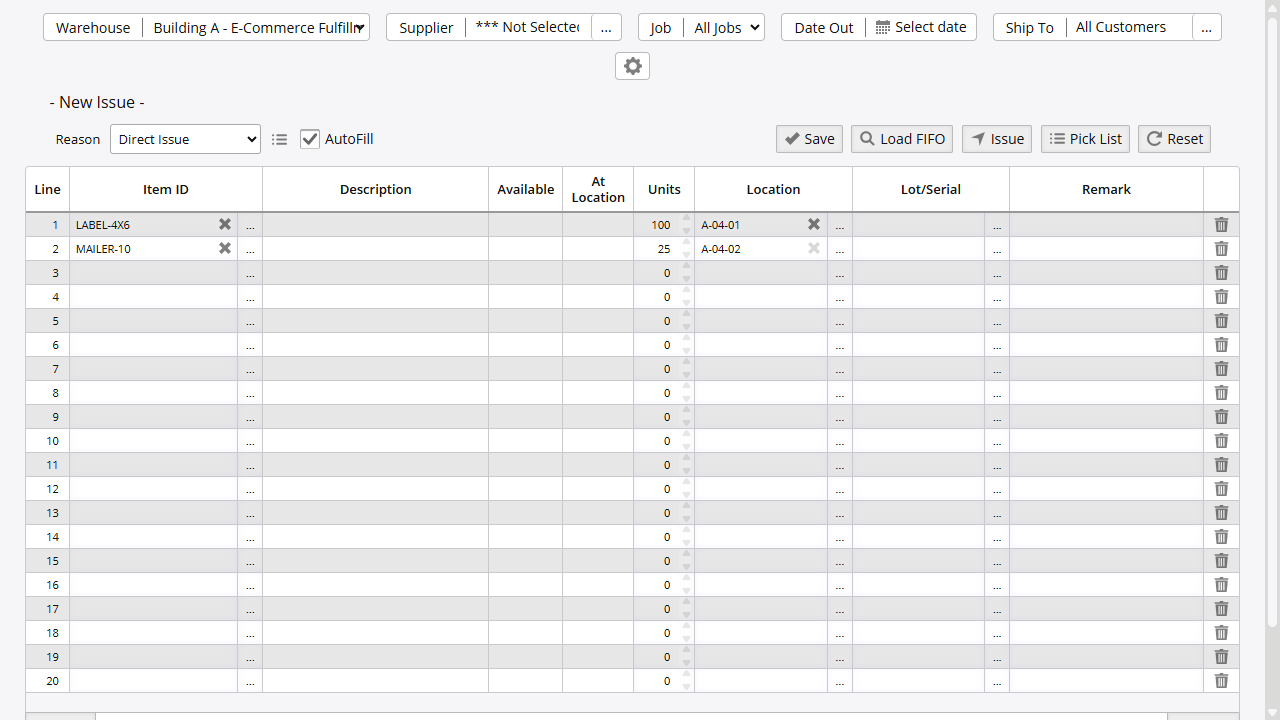
Screen Components:
- Warehouse: Select the source warehouse (required)
- Reason: Choose the negative adjustment code explaining why inventory is decreasing
- Supplier (optional): Filter items by supplier
- Ship To (optional): Assign the issue to a customer for tracking
- Job (optional): Link to a job for cost allocation
Key Operations:
- Save: Stores items in temporary staging area without updating inventory. Allows review, modifications, and building up issues over time. Items remain until finalized or reset
- Load FIFO: Auto-populates grid using FIFO/FEFO intelligent stock allocation (Admin Option 21)
- Issue: Finalizes all transactions, immediately updates warehouse inventory, and creates permanent audit trail. Cannot be undone
- Pick List: Generates warehouse picking instructions for direct issues and shipping order issues
- Reset: Clears all temporary items and starts fresh
- Trashcan Icon: Marks a line to be removed when you save
Issuing Methods
Direct Issuing (Manual Adjustments)
Direct issuing creates negative inventory adjustments without linking to orders-used for damaged goods, samples, or corrections.
Required: Valid reason code explaining why inventory is decreasing
When to Use Direct Issuing:
- Small adjustments (1-20 items)
- Damaged or defective inventory write-offs
- Sample distribution or promotional items
- Items issued without formal documentation
- Internal consumption or testing
When NOT to Use Direct Issuing:
- Customer shipments (use Shipping Orders for proper invoicing and tracking)
- Manufacturing consumption (use Work Orders for cost tracking)
- Large-scale corrections (use Cycle Counting for variance analysis)
Workflow:
- Select warehouse
- Choose a Reason code (e.g., Direct Issue, Physical Inventory - codes are configurable)
- Optionally filter by Supplier to limit item selection
- Assign Ship To or Job if tracking consumption
- Add line items manually:
- Enter or search for Item ID
- Enter quantity to issue
- Select location or use Load FIFO for automatic allocation
- Add lot or serial numbers for tracked items
- Save to stage multiple items
- Issue when ready to remove from inventory
Tips:
- Use AutoFill option to copy the previous line’s location for faster entry
- The system auto-generates a reference number on save for tracking
- Load FIFO uses FIFO/FEFO logic to automatically select oldest stock
Line Item Fields
| Field | Behavior | Notes |
|---|---|---|
| Item ID | Required | Must be enabled in current warehouse and not discontinued |
| Units | Required, >0 | Quantity to issue from stock |
| At Location | Display | Shows current stock location |
| Location | Auto-assigned if blank | Defaults to FIFO/FEFO selection when using Load FIFO |
| Serial/Lot | Required for serialized/lot items | Combined column; enter serial number, lot number, or RFID in this field |
| Alt.Serial | Optional secondary serial | Available in View 2 only; used for dual serial tracking |
| Date Out | Header field (default view) | Global date applied to all lines; per-line in View 2. Can be adjusted within limits (Admin Option 525) |
| Remark | Optional | Free-text note per line |
| Warehouse | Hidden field | PartsActive RecNo for specific stock allocation |
Header fields (apply to all lines on the issue, not per-grid-row): Ship To, Job, Date Out (default view).
Shipping Order Issues
Shipping orders drive customer fulfillment with automated stock allocation and order status tracking.
Workflow:
- Navigate to Orders → Shipping → Shipping Orders
- Select the shipping order and click the Line Items tab
- Click Issue - a confirmation dialog appears: “Start issue process for this shipping order?” Click OK
- The issue screen opens pre-populated with:
- Warehouse from the SO
- Shipping order reference link (SO number)
- Line items with committed stock
- Reason auto-set to “SO Issue” (not user-editable)
- Review items and locations (use Load FIFO for automatic FIFO/FEFO allocation)
- Adjust quantities if doing partial shipments
- Check Show Packing Slip if a packing slip is needed
- Save to review, then Issue (or Pack if packing workflow enabled)
- Print packing slips and shipping labels from the SO record if needed
Features:
- Partial shipments automatically update SO line status
- Packing workflow moves items to packed status requiring Ship or Return action (Admin Option 153)
- Auto-create backorders for remaining quantities (Admin Option 71)
- Pick List button available to help warehouse staff locate items
- Restriction: Cannot add new line items - only items from the original order are accepted (backend-enforced)
See the detailed Shipping Orders guide for creating and managing shipping order records.
Work Order Issues
Work orders consume materials for jobs or build assemblies with cost tracking and manufacturing integration.
Workflow (Standard WO - default):
- Navigate to Orders → Other → Work Orders
- Select the work order and click the Line Items tab
- Click Issue - a confirmation dialog appears: “Issue inventory for current work order?” Click OK
- The system executes the issue immediately and returns to the Line Items page. No staging screen is shown.
When Admin Option 195 is enabled, the system also preloads the WO line items into the Issue screen staging area on this default path for post-issue review.
Workflow (Standard WO - Admin Option 122 enabled):
When Admin Option 122 is on, clicking Issue redirects to the full Issue screen with the WO’s items listed. You then use the standard Save → Issue staging workflow rather than the immediate confirm path.
Workflow (Assembly WO):
- Navigate to Orders → Other → Work Orders
- Select the assembly work order and click the Line Items tab
- Click Assemble (replaces the Issue button for assembly WOs) - confirm the dialog
- The system issues component materials and automatically receives the assembled finished goods
Features:
- Tracks material consumption against job budgets
- For assembly WOs, issuing components simultaneously receives the assembled stock
- Auto-create backorders for remaining quantities (Admin Option 121)
- Pick List button available from the WO Line Items tab for warehouse staff
See the detailed Work Orders guide for creating and managing work order records.
Purchase Order Returns
Return defective, incorrect, or unwanted items to suppliers using the dedicated return functionality.
Use the Purchase Order module’s return functionality at Orders → Purchasing → Purchase Orders → [Select PO] → Line Items → Returns for proper supplier credit tracking, return authorization management, and PO line status updates. Click Apply to commit the return; click Back to cancel and return to the PO.
Note: If stock has been moved from its original receive location, those lines will not appear in the Returns grid. Use a manual correction in that case.
See the detailed Purchasing guide for complete return workflow and features.
Cycle Counting
Cycle counts verify physical inventory against system records and automatically adjust stock levels for discrepancies. When shortages are identified, the system issues inventory to correct the variance.
Workflow:
- Navigate to Inventory → Inventory → Cycle Counts
- Select a warehouse; click the Run New Cycle Count link to create a new count
- Optionally filter by location, supplier, or category
- The system generates count lines showing expected quantities
- Enter actual counted quantities and locations
- Use the View dropdown to filter to discrepancies, shortages, or overages
- Click Review Count to enter Review Mode (distinct from the Review report action)
- In Review Mode, check the per-line Post checkboxes and click Post Count to finalize
- Posting automatically issues shortages, receives overages, and moves location discrepancies
Capabilities:
- Variance analysis with view filters: All Items, Counted Discrepancies, Counted Shortages, Counted Overages, Not Posted Items, and more
- Auto-save during counting to prevent data loss (Admin Option 526)
- Approval workflows for accountability (Admin Option 170) [NEEDS VERIFICATION]
- Posting is per-line - individual rows can be selected before running Post Count
- Variance reports for accuracy tracking
- Shortages are automatically issued using the Cycle Count reason code
Issue Processing: When posting cycle count shortages:
- System automatically creates issue transactions for missing inventory
- Uses cycle count-specific reason code for audit trail
- Removes stock from the system to match physical count
- Tracks variance amounts for reporting and analysis
- No manual issue screen required - posting handles everything
See Cycle Counting for complete documentation on creating counts, managing variances, and approval processes.
Mobile Issuing
Complete issuing operations on mobile devices for increased flexibility and warehouse efficiency.
Direct Issuing (no order):
- Login to Inventory Pro Mobile
- Confirm or change the active warehouse using the warehouse selector in the header
- Navigate to Inventory → Issue Stock
- Select a Reason code, then add items with quantities and locations
- Tap Issue to finalize
Order-Based Picking:
- Navigate to Shipping → Order Picking
- Select or scan the shipping order
- Pick items using the Next Pick hint or the Review tab
- Tap Save to finalize (or Issue if bulk picking is disabled - the button label is mode-dependent)
Scanner Issue Page: For dedicated barcode scanning workflows, navigate to Inventory → Scanner Issue. This page provides Scan and Review tabs for a streamlined scan-driven issue process.
Features:
- Barcode scanning for faster item entry (Scan button in footer)
- Immediate issue submission from the mobile workflow
- Location selection on the warehouse floor
- Serial/Lot and Alt Serial fields
- More Options section for Customer, RFID, Reference, and Remarks
- Pick list integration for order picking (Next Pick hint + Review tab)
Bulk Import
For large-scale issue operations or data migration, Inventory Pro supports bulk import of issue transactions.
Access: Utilities → General → Import and Export → locate the Issue Stock row under the Stock Transactions section. A downloadable Issue Stock Template (InventoryPro_DirectIssue.xlsx) is available in the Template column.
Supported Formats: CSV, XLS, XLSX
Available Fields:
| Field | Required | Description |
|---|---|---|
| Warehouse | Yes | Destination warehouse ID or name |
| Item ID | Yes | Item number being issued |
| Units | Yes | Quantity to issue (must be positive number) |
| Net Weight | No | Net weight of items |
| Gross Weight | No | Gross weight including packaging |
| Serial | No | Serial number for tracked items |
| Serial 2 | No | Secondary serial identifier |
| RFID Tag | No | RFID tag identifier |
| Reference | No | Transaction reference number |
| Remark | No | Notes or comments |
| Location | No | Warehouse bin location |
| Customer | No | Customer ID or name |
| Unit Cost | No | Cost per unit |
| Job | No | Job ID or name |
| SpareString1/2 | No | Custom field data |
Process:
- Prepare CSV/Excel file with required columns (or download the Issue Stock Template)
- Navigate to Utilities → General → Import and Export
- Locate the Issue Stock row under Stock Transactions and upload the file
- System validates and stages records in temporary table
- Redirects to issue module for review
- Review staged items and click Issue to finalize
Important: All imports are validated before finalizing. Errors prevent the entire batch from processing until corrected.
FIFO & FEFO Stock Allocation
When using Load FIFO or letting the system auto-select locations, intelligent stock allocation optimizes inventory turnover:
FIFO (First In, First Out): Prioritizes oldest stock by receive date to prevent obsolescence. Selection order:
- Items committed to current order (for SO/WO issues)
- Items assigned to the specific job
- Items with no job assignment (general stock)
- Oldest receive date first
FEFO (First Expired, First Out): Prioritizes stock approaching expiration dates for perishable inventory:
- Items with nearest expiration dates
- Configurable expiration warnings
- Automatic alerts for expired stock
Multiple Location Splits: When insufficient stock exists at a single location, the system automatically splits the request across multiple locations to fulfill the total quantity.
Validation Rules
The system enforces strict validation to prevent errors:
Item Validation:
- Item must exist and not be discontinued
- Item must be enabled in the selected warehouse (Admin Option 504)
- Non-stock items bypass availability checks
Quantity Validation:
- Sufficient units must be available at specified locations
- Stock must not be on hold (unless using Hold Release reason code -7)
- Committed stock validated for SO/WO issues
Location Validation:
- Location must exist in the warehouse
- Location cannot be on hold for issuing (except with reason code -7)
- Serial number must match location if specified
Shipping Order Restrictions:
- Cannot add new line items - must issue items from original order
- Quantities cannot exceed order line quantities (warnings issued for over-shipments)
- Stock must be committed to the specific shipping order
Work Order Restrictions:
- By default, issue runs from the WO Line Items tab without a staging screen; Admin Option 122 redirects to the Issue screen instead
- Stock committed to work order validated
- Assembly WOs validate component requirements
Date Limiting:
- Date Out cannot exceed configured range (Admin Option 525)
- Prevents excessive forward or back-dating of transactions
Admin Options
Key configuration options affecting issue operations:
| Option | Description |
|---|---|
| 21 | Enable Load FIFO button for automatic FIFO/FEFO stock allocation |
| 71 | Auto-create backorders for unissued shipping order quantities |
| 121 | Auto-create backorders for unissued work order quantities |
| 122 | Route WO issuing through the Issue screen instead of immediate confirm-and-issue |
| 153 | Enable packing workflow for shipping orders (Pack → Ship process) |
| 195 | Preload WO line items into the Issue screen staging area (works with the default AO 122-off path) |
| 219 | Enable job tracking and assignment |
| 504 | Enforce warehouse-specific item assignments |
| 525 | Date Out limit (days) - restricts how far forward/back issues can be dated |
Permissions
Access to each issuing method is controlled by separate permissions assigned under System → Security.
| Method | Required Permission |
|---|---|
| Direct Issues | Negative Adjustment (Issues) |
| Shipping Order Issues | Preview SO |
| Work Order Issues | Maintain WO Lines |
| Work Order Issues (AO 122 path) | Maintain WO Lines + Negative Adjustment (Issues) |
| PO Returns | PO Returns |
| Cycle Count | Cycle Count |
| Bulk Import | Import / Export |
| Pick List (Direct / SO) | Order Fulfillment |
| Pick List (WO) | Maintain WO Lines |
Negative Adjustment Codes
Negative adjustment codes document the business reason for inventory removals and enable reporting by issue type.
Standard Codes:
Negative adjustment codes are configurable per site. Common examples include codes for direct issues, physical inventory corrections, and asset consumption. The following codes are system-reserved (cannot be deleted):
- SO Issue (-4): Automatically assigned for shipping order issues
- WO Consumption (-3): Automatically assigned for work order issues
- PO Correction (-8): Returns and corrections to purchase orders
- Hold Release (-7): Issues from held locations (bypasses hold restrictions)
Why They Matter:
- Variance Tracking: Identify patterns in shrinkage, damage, or waste
- Regulatory Compliance: Document reasons for inventory decreases
- Cost Analysis: Track consumption by type for budgeting
- Reporting: Filter and analyze issue history by reason code
Creating Custom Codes:
- Navigate to System → Definitions → Negative Adj. Codes
- Click Add New Negative Adjustment Code
- Enter code description
- Set active status
- Assign to specific warehouses if needed
- Save the new code
For comprehensive guidance on adjustment codes, see the dedicated Adjustment Codes documentation.
Pick Lists
Pick lists streamline warehouse operations by providing organized picking instructions for direct issues, shipping orders, and work orders.
Access: Available via the Pick List button on the direct issue screen, the SO issue screen, and the WO Line Items tab
Features:
- Groups items by warehouse location for efficient routing
- Shows quantities needed and available
- Includes serial number tracking requirements
- Can be printed or emailed to warehouse staff
Workflow:
- Save your issue (don’t finalize yet)
- Click Pick List button
- Review picking instructions
- Print or email to warehouse staff
- Return to issue screen and finalize when picked
Key Reports
Access issue reports via Reports → [Search] or direct access from the issuing screen.
Issue History (Report 60): Complete transaction log showing all issues by date range, item, user, warehouse, or reason code. Displays quantities issued, costs, locations, and reference numbers. Primary report for tracking inventory consumption and investigating discrepancies.
Issue Slip (Report 64): Printable transaction document for physical records and signature verification. Includes item details, quantities, locations, and user information. Used for warehouse documentation and audit compliance.
Audit Trail (Issues) (Report 124): Detailed audit log with user timestamps, reference tracking, and full transaction history. Shows who issued what items, when, and why with complete traceability for accountability and compliance.
Hot Movers (Issues/Customer Issues): Identify frequently issued items for demand forecasting and stocking optimization. Filter by customer (Report 155) to analyze customer-specific consumption patterns or view all issues (Report 150) for overall trending.
Audit Trail (Active Parts Issued) (Report 95): Track issues from specific inventory lots by serial number, lot number, or location. Essential for serialized item tracking and investigating lot-specific quality issues.
All reports support filtering by date range, warehouse, customer, job, and reason code. Export to Excel for further analysis.
Troubleshooting
“Not enough inventory at this location”
- Problem: Insufficient stock at specified location
- Solution: Verify physical inventory matches system records, check if stock is on hold, or use Load FIFO to find available stock
- Prevention: Maintain accurate inventory records and use FIFO/FEFO allocation
“Cannot add line(s) to the issue derived from shipping/work order”
- Problem: Attempting to add items not on original order
- Solution: Return to the order and add line items there first
- Prevention: Expected behavior for SO/WO issues - can only issue items from original order
“Warehouse Location does not exist”
- Problem: Location not defined in warehouse Maps table
- Solution: Verify location exists in selected warehouse and check for typos or extra spaces
- Prevention: Set up all warehouse locations in Maps table before issuing
“Item has been discontinued”
- Problem: Cannot issue discontinued items
- Solution: Contact system administrator to reactivate item if needed
- Prevention: Maintain current item master with accurate status
“Serial number does not exist in inventory”
- Problem: Serial number not found at specified location
- Solution: Verify serial number is typed correctly and exists at specified location
- Prevention: Implement serial number validation and barcode scanning
Permission Errors
- Problem: User lacks required permissions
- Solution: Verify “Negative Adjustment (Issues)” permission is assigned and check warehouse-specific access
- Prevention: Establish proper user permission levels
Incomplete Issues
If you saved an issue without completing it:
- Navigate to Inventory → Stock → Issue Stock
- Select the appropriate Warehouse
- Staged items appear automatically
- Review and click Issue to finalize
- Or click Reset to clear and start over
Note: Saved issues are user-specific and warehouse-specific. Items are not visible to other users and don’t affect inventory until finalized.
Best Practices
- Use Appropriate Reason Codes: Select codes that accurately reflect why inventory is being removed for better reporting
- Verify Locations: Confirm physical location matches system records before issuing, especially for serialized items
- Partial Shipments: Use shipping order partial shipments rather than direct adjustments for customer orders
- Regular Reconciliation: Review issue reports regularly to identify patterns and discrepancies
- Serial Number Accuracy: Double-check serial numbers for tracked items to prevent picking errors
- Job Tracking: Assign jobs when applicable for accurate cost allocation and project tracking
- Timely Processing: Complete staged issues promptly to maintain accurate inventory levels
Related Topics
- Shipping Orders - Managing customer orders and fulfillment
- Work Orders - Creating and managing work orders for manufacturing
- Cycle Counting - Physical inventory verification and corrections
- Mobile Cycle Count - Mobile cycle counting with barcode scanning
- Issue Reports - Analyze issue history, audit trails, and hot movers
- Import & Export - Bulk data loading procedures
- Returns - Purchase order and shipping order returns
- Item Alias - Alternative item IDs for cross-referencing
On this page