Contents
Cycle Counting
Cycle counting verifies physical inventory against system records and automatically adjusts stock levels for discrepancies. Use it for ongoing accuracy programs, periodic spot checks, or full physical inventories without requiring operational shutdowns.
Quick start: Go to Inventory → Cycle Counts, set Warehouse and Locations filters, click Run New Cycle Count, enter quantities in the Found column, then click Review Count → Post Count. Requires the Cycle Count permission.
| Method | Access Path | Purpose |
|---|---|---|
| Desktop Cycle Counts | Inventory → Cycle Counts | Full-featured counting with variance analysis and approval workflows |
| Mobile Cycle Counts | See the Mobile Cycle Count guide | On-the-floor counting with barcode scanning |
| Bulk Import | Utilities → General → Import and Export → Stock Transactions | Import count data from external systems or spreadsheets |
Access: Navigate to Inventory → Cycle Counts (under the Inventory group in the left sidebar). Requires the Cycle Count permission. If this menu item is not visible, contact your administrator.
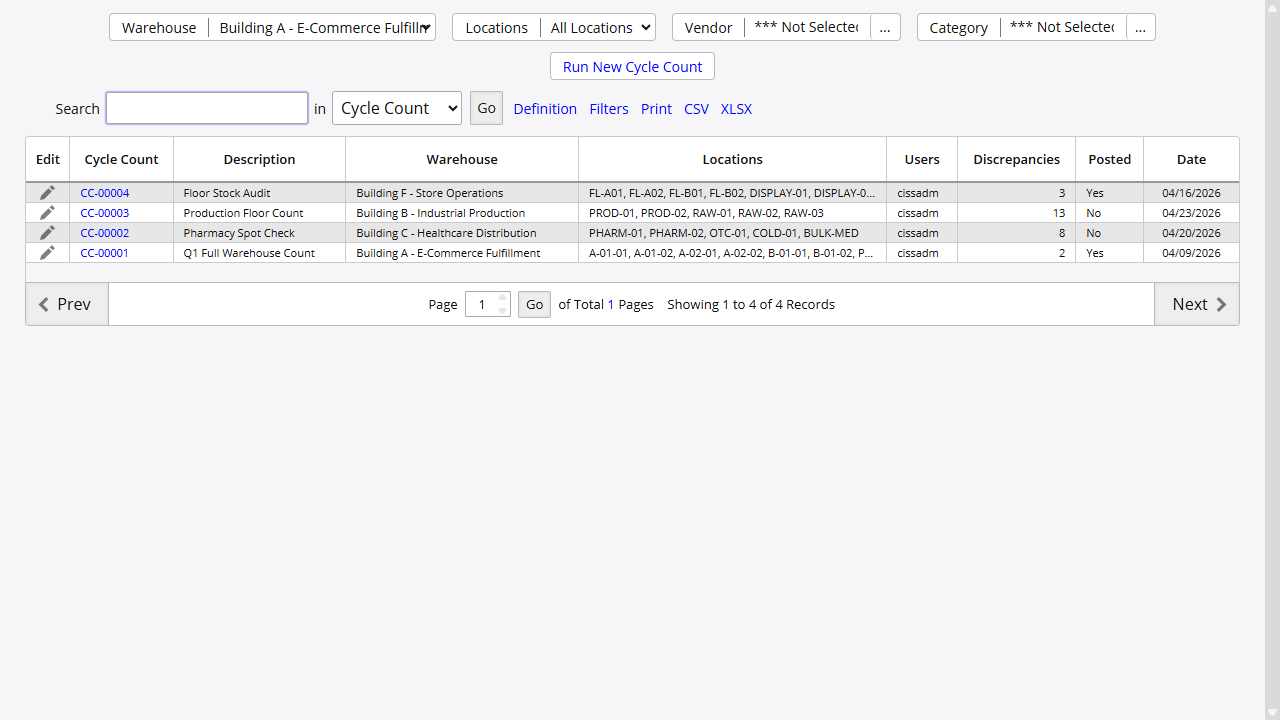
Cycle Count List Page
The list page shows all cycle count sessions. Columns: Edit, Cycle Count ID, Description, Warehouse, Locations, Users, Discrepancies, Posted, Date. All column headers except Edit are sortable. Use Print, CSV, or XLSX to export the list. Use the Search, Filters, and Definition controls to narrow results.
Creating a New Count
Click the Run New Cycle Count link. The new count session is created immediately using the current Warehouse and Locations filter selections - there is no intermediate setup form. The count appears in the list with a new ID (e.g., CC-00023) and opens the Cycle Count Utility.
Setting the Count Description
The Description is set after the count is created. Click the pencil (edit) icon next to any count in the list to open the record editor. Enter or update the Description (up to 255 characters) and click Save. This is the only place to set the Description.
Opening a Count
Click the Cycle Count ID link to open the Cycle Count Utility for that session.
Cycle Count Utility
The Cycle Count Utility (/Inventory/CycleCountLines) is where you enter counted quantities and post adjustments.
Filters and Display
At the top of the utility, Warehouse and Locations are shown as display-only text - they reflect the settings from when the count was created and cannot be changed here.
Additional filters:
| Filter | Notes |
|---|---|
| Supplier | Textbox with ”…” lookup button. Filters count lines by supplier. |
| Category | Textbox with ”…” lookup button. |
| View | Dropdown - see options below. |
The utility also includes a Search box with a field dropdown. Available search fields are Item ID, Description, Supplier, Location, Serial, Status, Found, Expected, Diff., and Post.
View dropdown options:
| Option | Shows |
|---|---|
| All Items | All lines in the count |
| All Counted Items | Lines where a Found quantity has been entered |
| All Expected Items | Lines with a system expected quantity |
| Counted Discrepancies | Lines where Found ≠ Expected |
| Counted Overages | Lines where Found > Expected |
| Counted Shortages | Lines where Found < Expected |
| Not Posted Items | Lines not yet posted |
Default view is set by Admin Option 198.
Grid Columns
| Column | Description |
|---|---|
| Item ID | Item number |
| Description | Item description |
| Supplier | Supplier assigned to the item |
| Location | Editable field - update if item was found at a different location. ”…” button opens warehouse map lookup. |
| Serial | Serial number. Toggle visibility with Show/Hide Columns. |
| Status | Per-line status: Not Posted, No Change, or validation message |
| Found | Enter actual counted quantity (number input, min 0) |
| Expected | System quantity at time of count |
| Diff. | Found minus Expected (auto-calculated) |
| Post | Checkbox - select lines to include in posting. Auto-checked when a discrepancy exists. |
Entering Counts
- Locate the item row.
- Enter the physical quantity in the Found column.
- Diff. updates automatically. The Status column shows “No Change” when Found matches Expected.
- If the item was found at a different location, update the Location field on that line.
- The Post checkbox is auto-checked when a discrepancy exists. Uncheck to exclude a line.
- Click Select All to check all visible lines, or Deselect All to uncheck all.
- Click Save to save progress without posting.
Show/Hide Columns
The Show/Hide Columns collapsible control in the toolbar lets you toggle:
- Serial column
- Supplier column
When Admin Option 290 is enabled, an Alt. Serial column appears in the grid. There is no separate toggle for Alt. Serial.
Validation Errors and Warnings
The utility displays an error/warning badge (e.g., “2 errors, 11 warnings”) in the pagination area. The Status column on each line shows the specific message for that row. Counts with errors cannot be posted until the errors are resolved. Warnings allow posting but flag items to review.
Posting Summary
At the bottom of the utility, a summary table updates as you mark lines for posting:
| Lines to Post | Number of lines selected |
| Receipts (+) | N lines / +N units (overages) |
| Issues (−) | N lines / −N units (shortages) |
| Net Change | Net unit adjustment |
Review this summary before posting to confirm the scope of adjustments.
Review Count and Posting
Posting finalizes the count and creates inventory adjustment transactions - issues for shortages, receipts for overages.
Standard Posting Workflow
- Enter counts in the utility and resolve any validation errors.
- Check the Posting Summary at the bottom of the page.
- Click Review Count. The utility enters read-only review mode showing all items marked for posting.
- Review the list. Click Back to return to editing if changes are needed.
- Click Post Count to finalize. Adjustment transactions are created and inventory levels are updated.
Review Count mode: The grid is read-only. A label at the top reads “Review Mode - Showing all items marked for posting. Use Back to continue editing.” Available buttons: Review, Back, Post Count.
Admin Option 810: When enabled, Post Count is also visible in normal edit mode, allowing you to bypass the Review Count step.
Admin Option 170: When enabled, an approval workflow is required before posting. Approval controls appear in Review Count mode.
Variance Types
| Variance | Result on Post |
|---|---|
| Shortage (Found < Expected) | Creates an Issue transaction |
| Overage (Found > Expected) | Creates a Receipt transaction |
Other Utility Controls
| Control | Function |
|---|---|
| Save | Saves current entries without posting |
| Refresh | Reloads count data without losing entered quantities |
| Review | Opens Report 146 - Cycle Count Review for the current count |
| Review Count | Enters read-only review mode before posting |
| Select All / Deselect All | Toggle Post checkboxes for all visible lines |
Desktop Cycle Counting
Full workflow:
- Navigate to Inventory → Cycle Counts.
- Set the Warehouse and Locations filters on the list page.
- Optionally set Supplier or Category filters.
- Click Run New Cycle Count. The new count is created immediately and the Cycle Count Utility opens.
- Enter counted quantities in the Found column for each item.
- Update the Location field on any line where an item was found at a different location.
- Mark lines for posting using the Post checkbox, Select All, or Deselect All.
- Resolve any validation errors shown in the Status column.
- Review the posting summary at the bottom of the page.
- Click Review Count, then Post Count to finalize.
To update the count description at any time, return to the list page and click the pencil icon next to the count.
Admin Option 174 enables a Split column for partial quantity counting.
Mobile Cycle Counting
Mobile cycle counting is covered separately in Mobile Cycle Count. Use that page for the current mobile workflow, count types, and mobile-only options.
Bulk Import
For large-scale counts or importing data from external systems:
Path: Utilities → General → Import and Export → Stock Transactions → Cycle Count row
A Cycle Count Template download link is available on the import page.
Supported formats: CSV, XLS, XLSX
Available Fields:
| Field | Required | Description |
|---|---|---|
| Warehouse | Yes | Warehouse name or ID |
| Item ID | Yes | Item number being counted |
| Location | No | Warehouse location |
| Units | Yes | Actual physical count quantity |
| Serial | No | Serial number for tracked items |
| Alt. Serial | No | Secondary serial number (Admin Option 290) |
| Count Session | No | Group counts by session identifier |
Workflow:
- Download the Cycle Count Template from the import page.
- Prepare the data file with count results.
- Return to Utilities → General → Import and Export → Stock Transactions → Cycle Count row and upload the file.
- System validates and creates a cycle count session.
- Open the count in the Cycle Count Utility, review imported lines, and post.
Permissions
Both the Cycle Count list page and the Cycle Count Utility require the Cycle Count permission. Additional controls are gated separately:
| Permission | What It Controls |
|---|---|
| Cycle Count | Access to Inventory → Cycle Counts and the Cycle Count Utility |
| Administrative Options | Admin Options gear icon in the Cycle Count Utility toolbar |
Approval workflow controls (Admin Option 170) are visible to all users with Cycle Count access but the approval action itself may be restricted by your organization’s group assignments.
Admin Options
| Option | Description |
|---|---|
| 170 | Require approval before posting cycle counts |
| 174 | Enable Split column for partial quantity counting |
| 198 | Set default view for count lines |
| 290 | Enable Alt. Serial column (secondary serial number) |
| 504 | Enforce warehouse-specific item assignments |
| 526 | Auto-save count progress to prevent data loss |
| 529 | Use alternate color coding for variance highlighting |
| 810 | Show Post Count in normal edit mode (bypass Review Count requirement) |
Count Management
All cycle count sessions are managed from the Cycle Count List page (Inventory → Cycle Counts).
The list shows a Posted column (Yes/No). A count with some lines posted and others pending shows No until all selected lines are posted.
Count statuses:
| Status | Meaning |
|---|---|
| Open | In progress or awaiting completion |
| Posted | All adjustments processed |
| Partial | Some lines posted, others pending (inferred) |
| Pending Approval | Awaiting approval workflow (Admin Option 170) |
30-day auto-close: Counts not modified in 30 days are automatically treated as closed by the system.
Troubleshooting
Count quantities not saving
- Enable Admin Option 526 for auto-save. Check network connection and refresh the browser if entries are lost.
Cycle count cannot be posted
- Check the error/warning badge at the top of the utility. Resolve all errors in the Status column before posting.
- If Admin Option 170 is enabled, approval is required - check the approval status in Review Count mode.
Cycle Count page not accessible or controls are missing
- Your account requires the Cycle Count permission to open the list page or utility. Contact your administrator to have it added to your security group.
- If the Admin Options gear icon is missing from the utility toolbar, your account requires the Administrative Options permission.
Key Reports
| Report | Access | Use For |
|---|---|---|
| Cycle Count Review (Report 146) | Review button on Cycle Count Utility | Variance detail - expected vs. counted. Use before posting. |
| Cycle Count List (Report 253) | Print on Cycle Count List page | Summary of all sessions - status, warehouse, variances. |
Related Topics
- Receive Stock - Receiving inventory and positive adjustments
- Issue Stock - Issuing inventory and negative adjustments
- Mobile Cycle Count - Mobile cycle counting with barcode scanning
- Import & Export - Bulk data loading procedures
- Locations and Warehouses - Managing warehouse locations
:::tip[Related] Learn about cycle counting workflows and mobile support: Inventory Management Features :::
On this page